How to Use AI to Manage Your Google Calendar with Tavallio
Learn how Tavallio acts as your AI chief-of-staff for Google Calendar. Schedule, check availability, and manage events through plain-English chat.
How to Use AI to Manage Your Google Calendar with Tavallio
If you spend more time clicking through calendar slots than actually getting work done, you’re not alone. Scheduling a meeting, checking availability, or moving an event should be quick—but it often involves several clicks, tabs, and mental calculations. Tavallio’s AI Calendar Assistant changes that by letting you manage your Google Calendar through plain-English chat. No complex automation rules, no manual event creation. Just tell Tavallio what you need, and it handles the rest.
What Is Tavallio’s AI Calendar Assistant?
Tavallio is a conversational AI that acts like a chief-of-staff for your schedule. Instead of opening Google Calendar, finding a time slot, filling in event details, and sending invites, you simply type a command like “Schedule a 30-minute call with Sarah next Tuesday at 2 PM” or “What does my day look like tomorrow?” Tavallio checks your calendar, creates or retrieves events, and confirms the action with you.
The useful distinction is the interface: calendar work starts from the same Tavallio conversation you use for other tasks. That makes the workflow especially practical for busy professionals, freelancers, and small teams that want one place to request and review work.
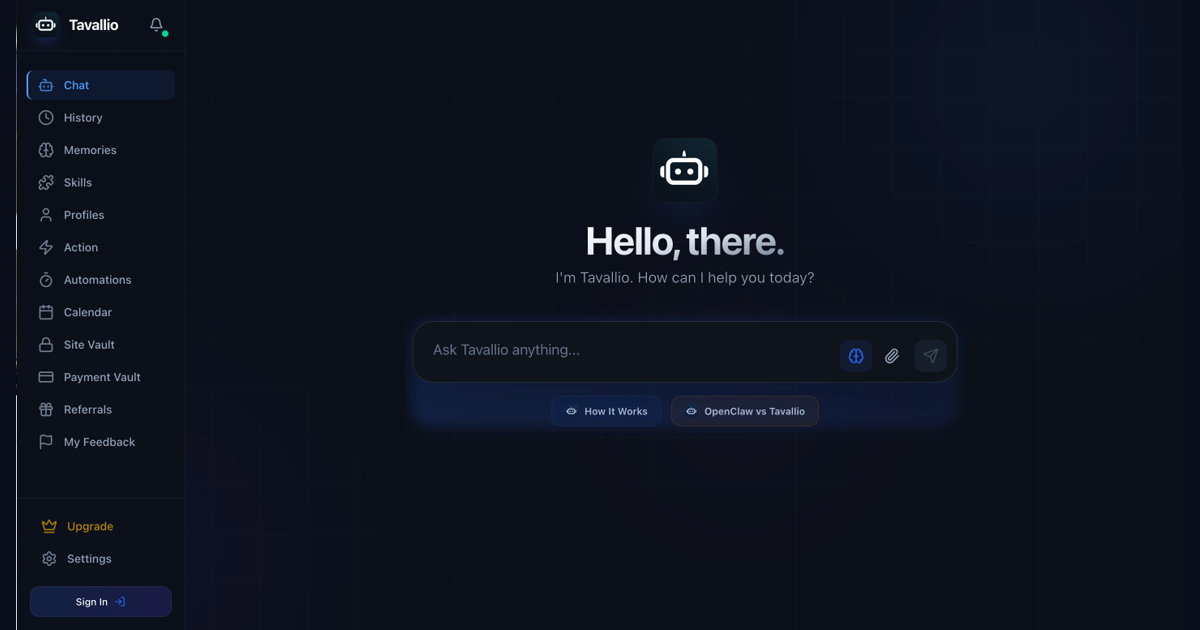
Tavallio’s workspace is built around this conversational flow. From the left navigation, you can access History, Memories, Skills, Profiles, Actions, Automations, Calendar, and more—all centered on the chat interface where you interact with your assistant. This is the original element that makes Tavallio different: you manage your calendar through a conversation, not a dashboard.
For a deeper look at what Tavallio can do, visit the AI Calendar Assistant feature page or explore scheduling automation solutions.
How to Connect Your Google Calendar to Tavallio
Google Calendar is part of Tavallio’s native Google Workspace support. Availability can be plan-gated or in private beta, so the Skills page is the source of truth for your account.
- Log in to your Tavallio account at app.tavallio.ai.
- Open Skills & Integrations from the navigation menu.
- Search for Google Calendar and check the status shown for your account.
- Choose Connect when it is available, review the access summary, and continue through Google’s own authorization screen.
- Return to Skills and confirm that the integration is active before asking Tavallio to use it.
A visible integration is not usable until it is enabled and the required authorization has completed. Connected calendar work remains subject to the permissions and approvals shown in Tavallio and by Google.
If you’re new to Tavallio, the Getting Started with AI Automation guide walks you through your first workflow.
What You Can Do with Tavallio and Google Calendar
Once your calendar is connected, Tavallio can handle a wide range of scheduling tasks. Here are the key actions you can take through natural language commands:
Schedule New Events
Simply tell Tavallio what you need. For example:
- “Schedule a 1-hour meeting with the design team this Friday at 10 AM.”
- “Set up a lunch meeting with Alex next Monday at 12:30 PM.”
- “Create an event for my dentist appointment on March 15th at 3 PM.”
Tavallio will create the event in your Google Calendar, add the details you provided, and confirm the action with you.
Check Your Availability
Before scheduling, you can ask Tavallio to check your calendar:
- “What does my schedule look like tomorrow?”
- “Am I free on Thursday afternoon?”
- “Do I have any conflicts next Tuesday at 2 PM?”
Tavallio will read your calendar and give you a clear answer, so you know exactly when you’re available.
Reschedule or Cancel Events
Need to move something? Just say so:
- “Move my 2 PM meeting with John to 4 PM.”
- “Reschedule the team standup to tomorrow at 9 AM.”
- “Cancel my appointment with the accountant on Friday.”
Tavallio will update or remove the event and confirm the change.
Set Reminders and Recurring Events
You can also set reminders or create recurring events:
- “Remind me to submit the report next Wednesday at 10 AM.”
- “Set up a weekly team sync every Monday at 9 AM.”
- “Create a recurring event for my monthly review on the first of each month.”
Tavallio handles the recurrence pattern and adds the event to your calendar.
Get a Quick Overview
At the start of your day, you can ask:
- “What’s on my calendar today?”
- “Show me my events for this week.”
- “What meetings do I have tomorrow?”
Tavallio will summarize your schedule so you can plan your day without opening Google Calendar.
All of these actions happen through the chat interface. You don’t need to create custom workflows or automation rules. Just type what you want, and Tavallio does the rest.
For a full list of capabilities, visit the AI Calendar Assistant page.
Which Tavallio Plan Includes Calendar Management?
Free assistant access does not include connected accounts. Google Workspace features can also be plan-gated or in private beta, so avoid relying on an old feature list or a fixed action allowance.
Open Skills while signed in to see whether Google Calendar is available for your account, then use the Pricing page for the current plan comparison. The FAQ also explains common account and product questions.
Getting Started with Tavallio’s Calendar Features
Ready to try it? Here’s a quick-start guide:
- Sign up for Tavallio at app.tavallio.ai.
- Connect your Google Calendar using the steps above.
- Open the Chat interface – This is where you’ll interact with Tavallio.
- Type a natural language command – For example, “Schedule a 30-minute call with marketing tomorrow at 11 AM.”
- Review any approval Tavallio presents before allowing a sensitive calendar change.
- Verify the result in Tavallio and Google Calendar.
You can also ask Tavallio to check your availability, reschedule events, or set reminders. The more you use it, the more natural it feels.
For a step-by-step walkthrough, see the Getting Started with AI Automation guide.
Ready to Let AI Manage Your Google Calendar?
Tavallio makes calendar management as simple as having a conversation. No more clicking through menus, no more manual data entry, no more complex automation rules. Just tell Tavallio what you need, and it handles the rest.
Check Google Calendar availability for your account, then get started at app.tavallio.ai.
Put it into practice
Give Tavallio the outcome, not another workflow to build.
Start with a real task from your day. Tavallio can plan the work, use connected tools, and pause before sensitive actions.
Try Tavallio